Getting Started
Welcome to AgentiveAIQ! This guide will walk you through the entire no-code journey of building and launching your first specialized AI agent. We'll start at your main dashboard, move through selecting a powerful pre-trained goal for your agent, and dive into complete visual customization with our live WYSIWYG editor. You'll also learn how to build your agent's "brain" by adding your website or documents, and finally, how to publish your new agent to your site with a single line of code.
Step 1: Your Dashboard
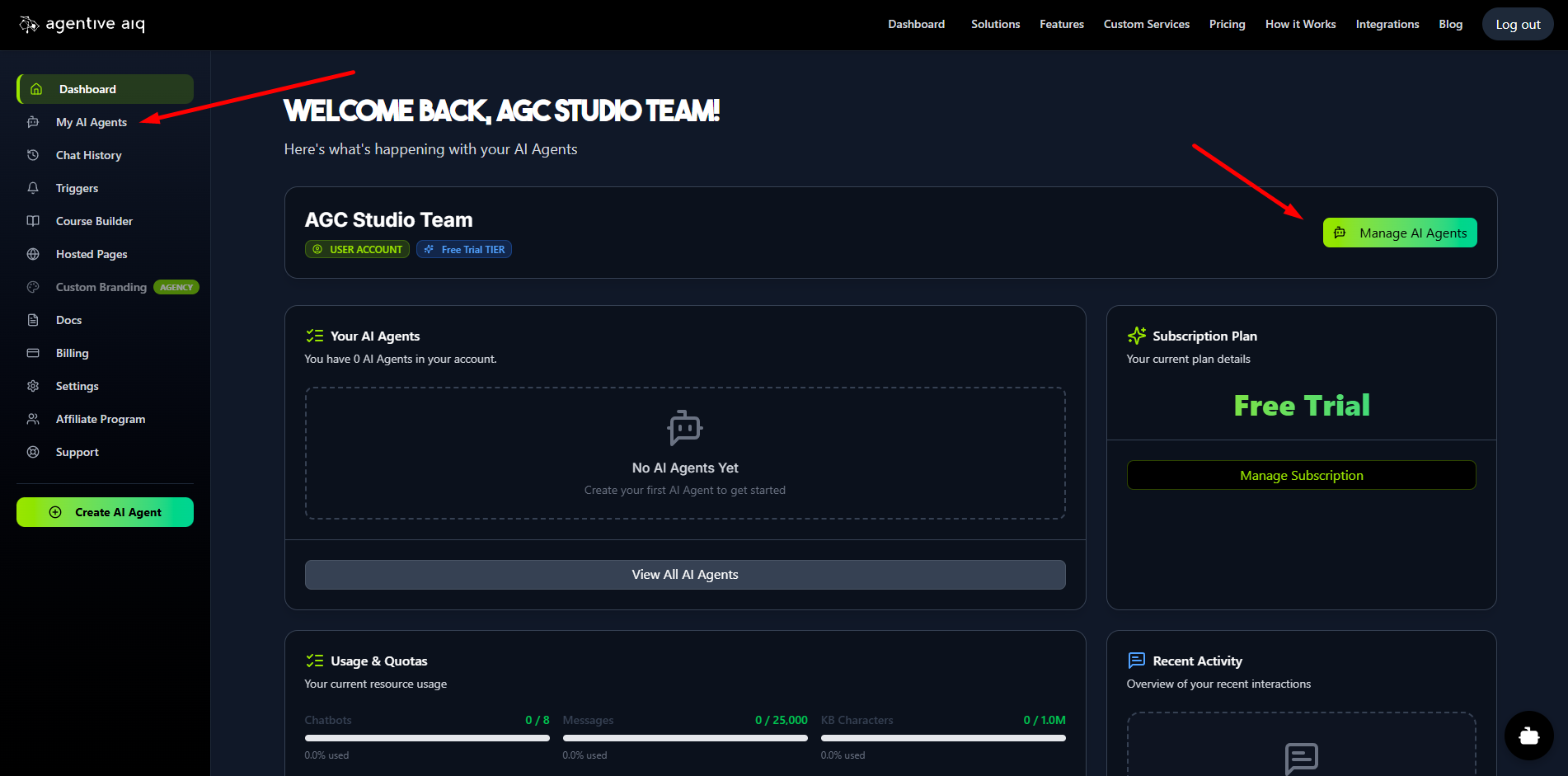
Welcome to your AgentiveAIQ Dashboard. This is your command center where you'll land upon logging in. From here, you can create new agents, monitor your account's usage and quotas, view your subscription plan, and get a quick overview of your recent chat activity.
Step 2: Create Your First Agent
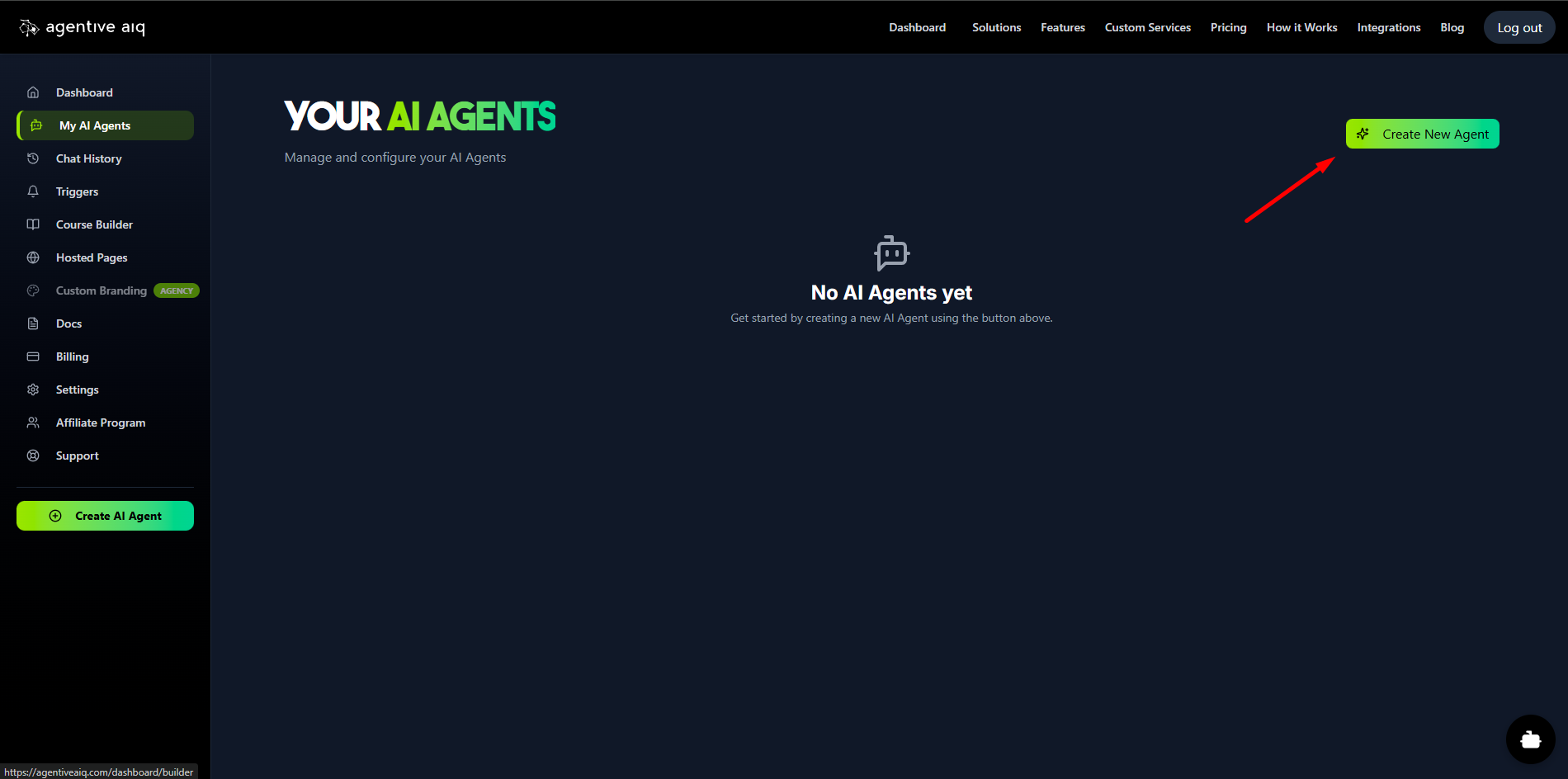
To begin building, navigate to the My AI Agents section. On this screen, you can manage all your existing agents. Since this is your first one, click the Create New Agent button in the top-right corner to get started.
Step 3: Name and Deployment Type
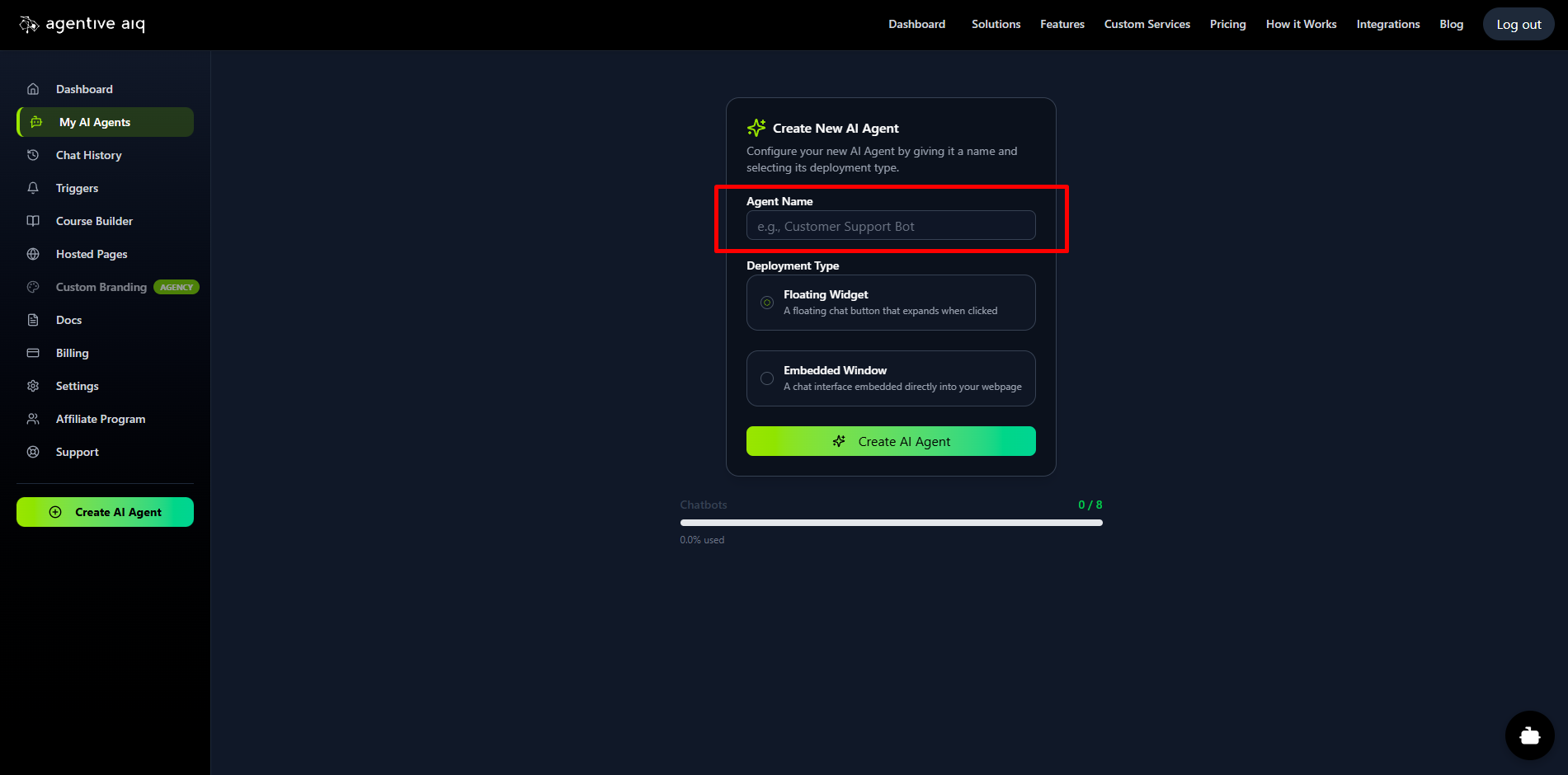
First, give your new agent a name (e.g., "Sales Agent" or "Customer Support Bot"). Next, choose its Deployment Type. You can select:
Floating Widget: A traditional chat button that "floats" on your site and expands when clicked.
Embedded Window: A chat interface that you can embed directly into a specific page or section of your website.
Step 4: Select Your Agent's Primary Goal
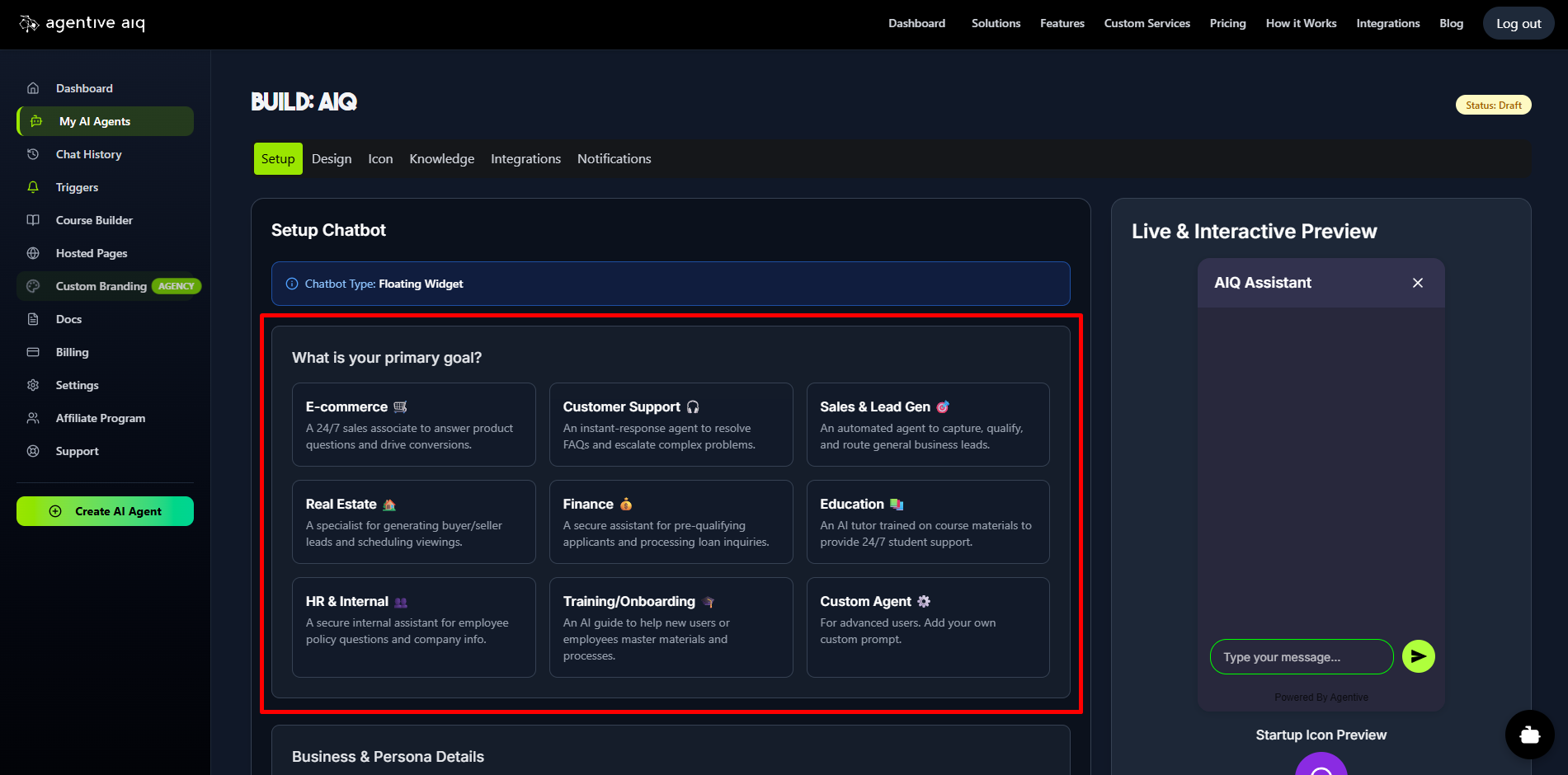
This is a crucial step. Select one of the nine pre-built goals that best suits your needs. Our platform uses dynamic prompt engineering to perfectly train your agent for its specific role. Based on your selection, new conditional fields may appear to further specialize your agent (e.g., setting an outcome goal for 'Sales & Lead Gen' or specifying a market area for 'Real Estate').
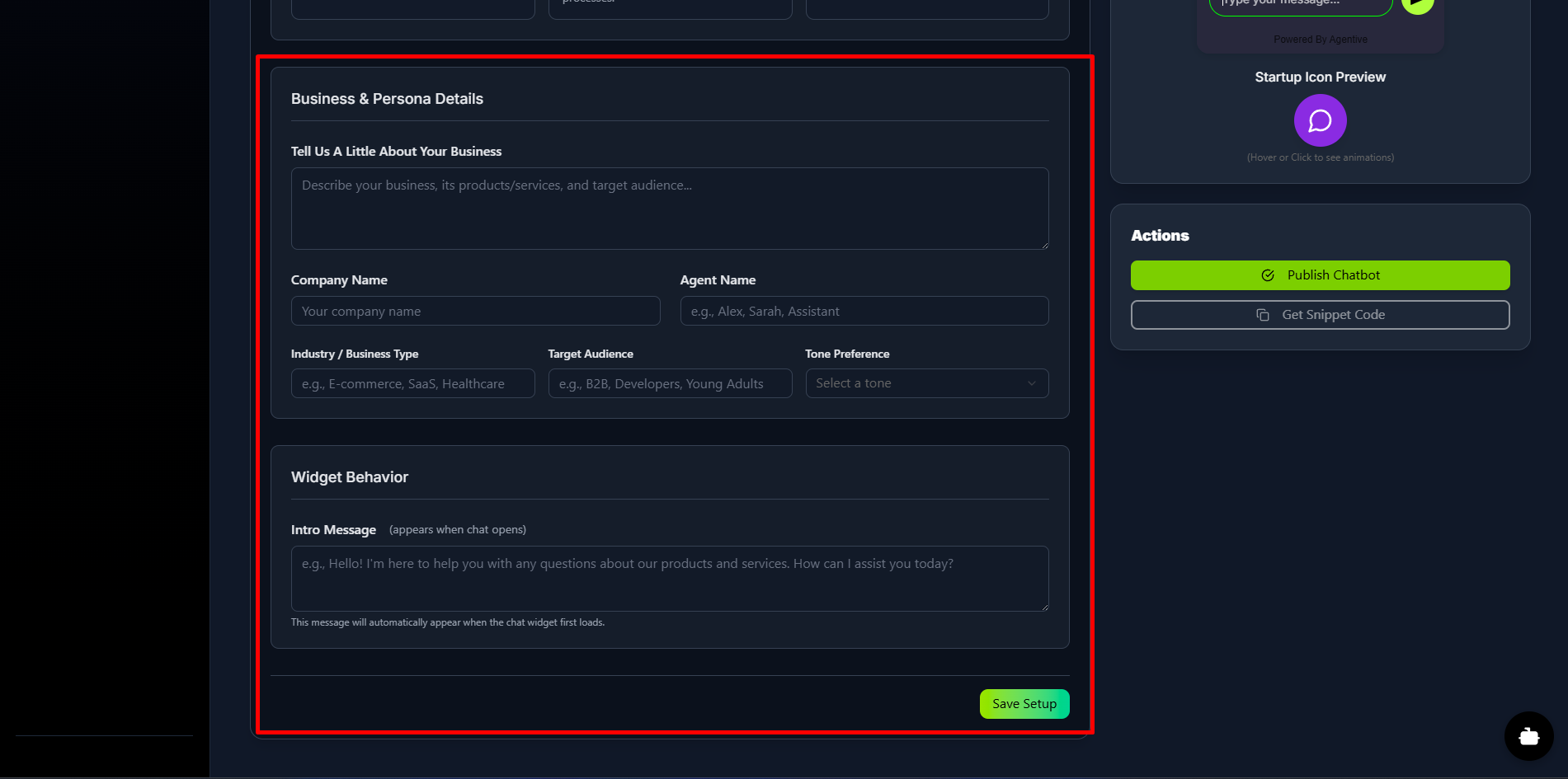
Step 5: Define Business & Persona Details
This information is vital—it's pulled directly into the agent's core prompts to give it a unique personality, make it smarter, and align it with your brand's voice. In this section, you will also set the Intro Message, which is the first message a user sees when they open the chat widget.
Step 6: Customize Your Chatbot's Design
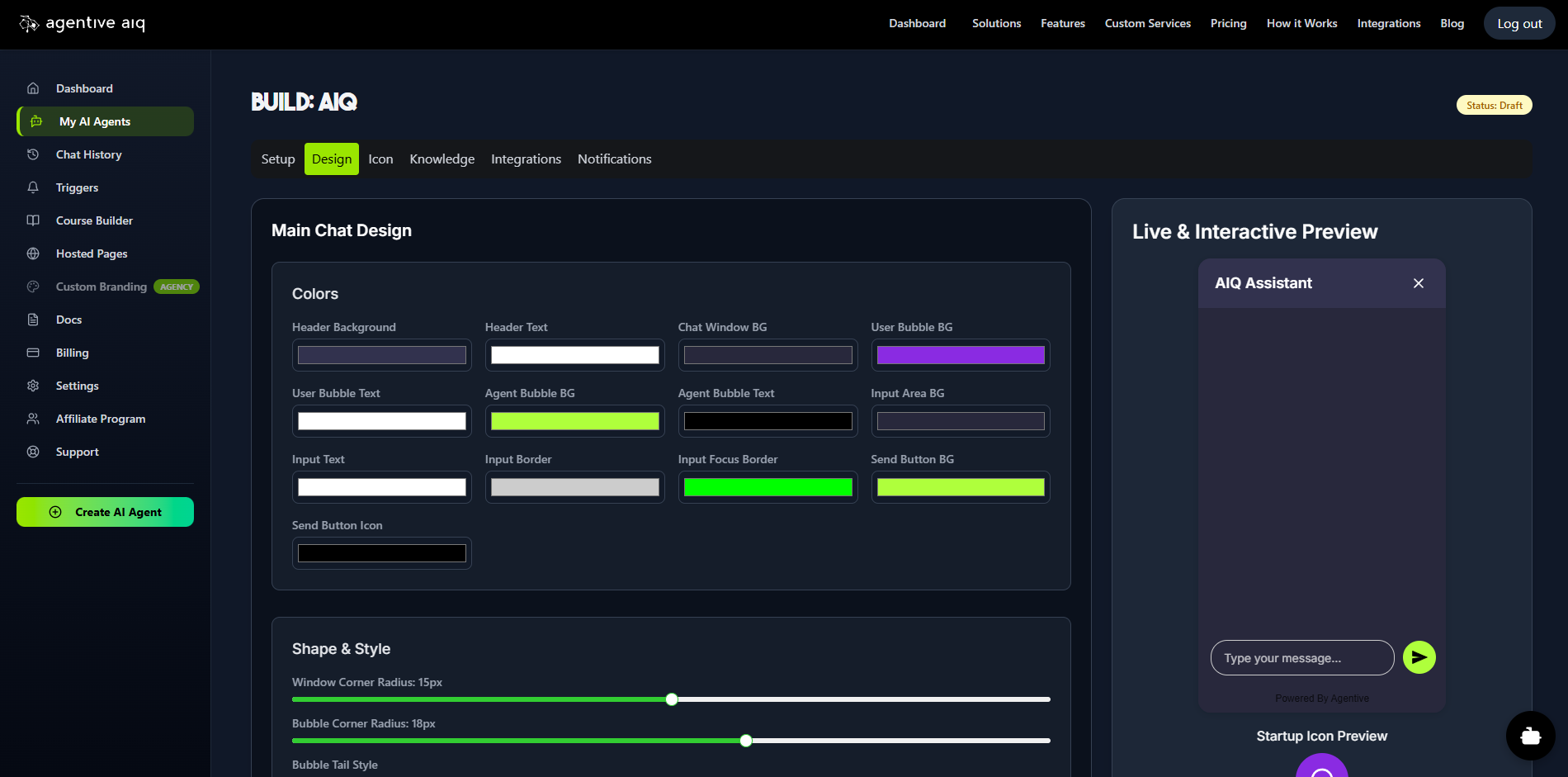
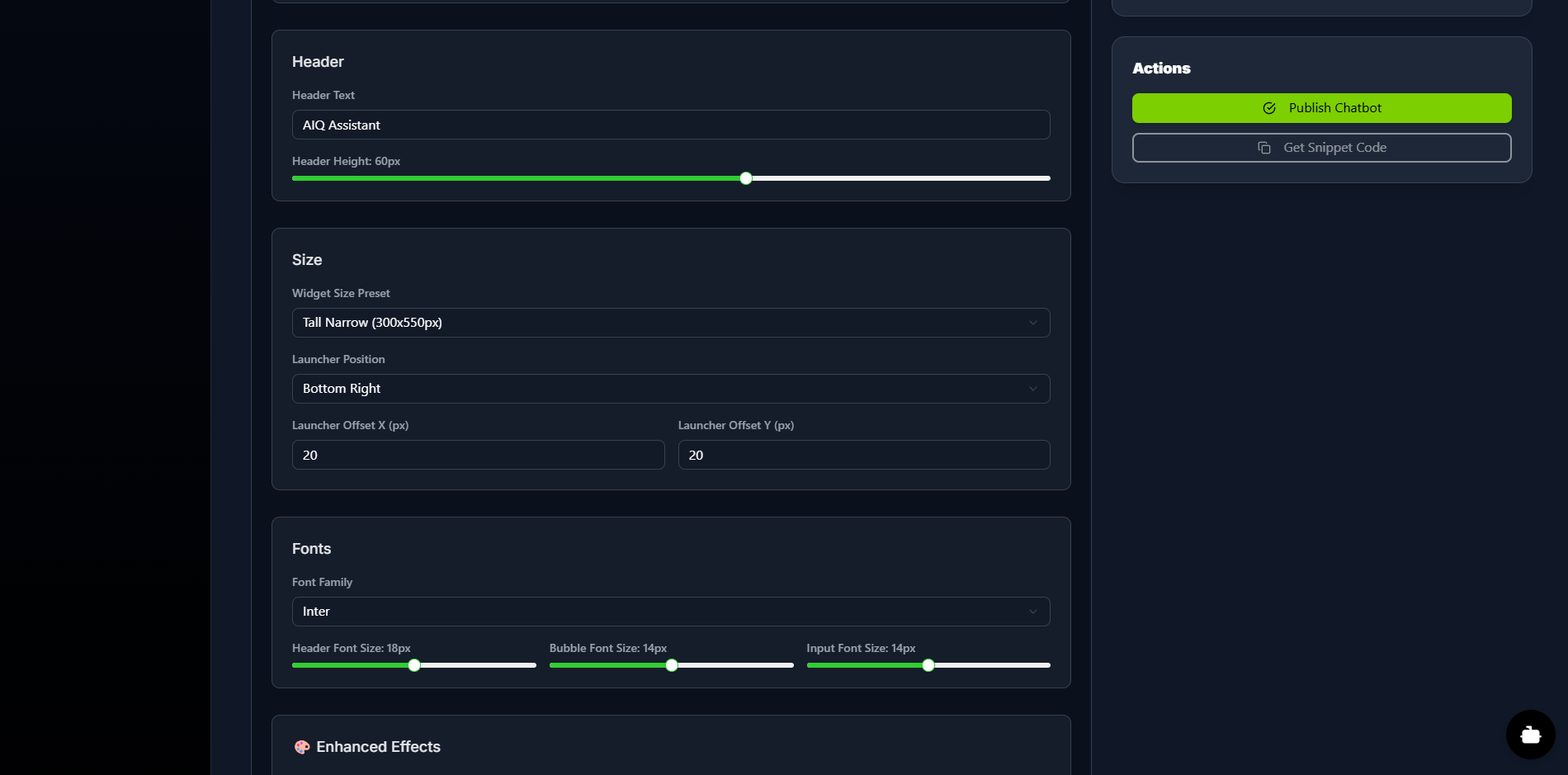
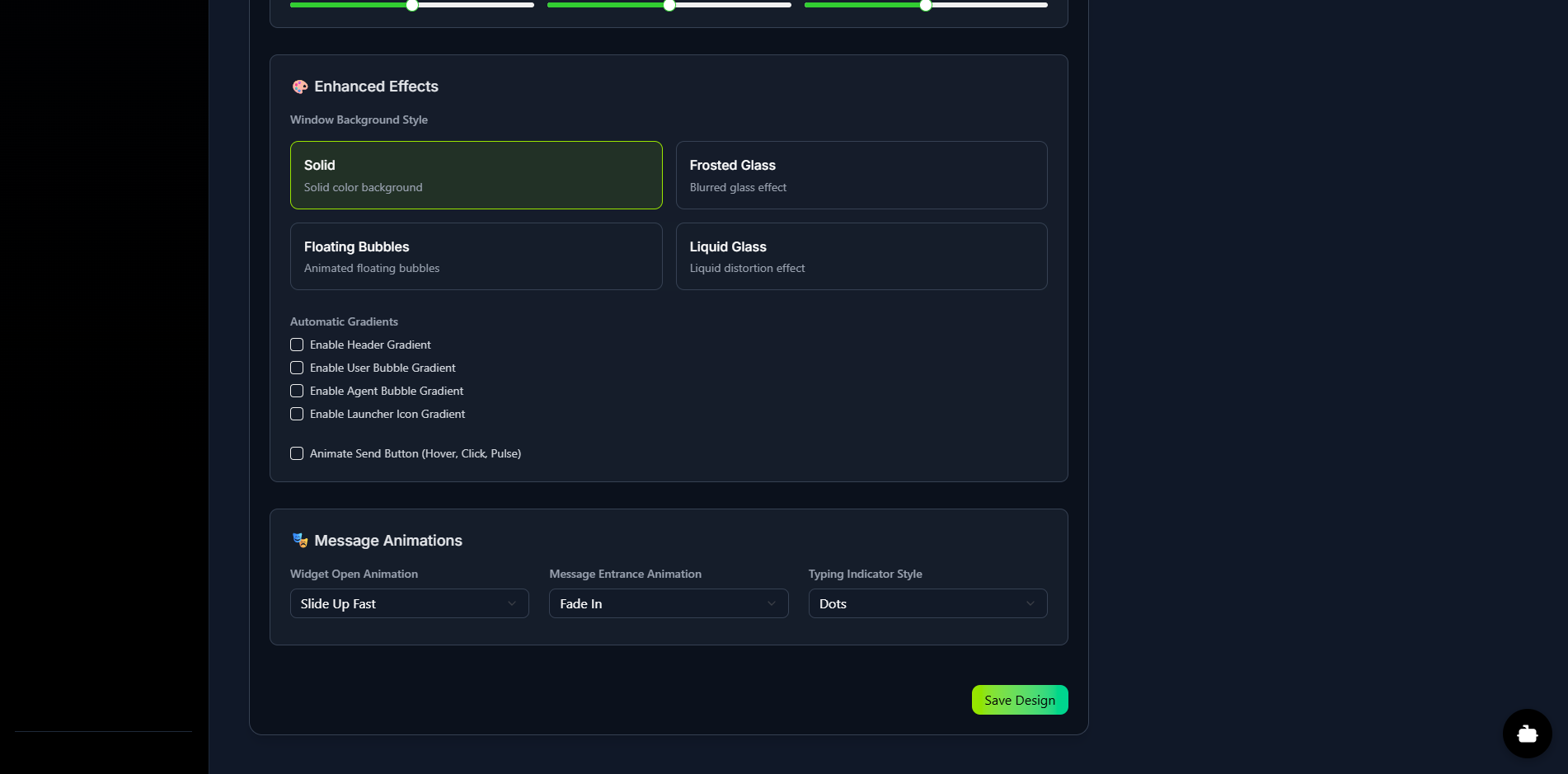
The Design tab is your true WYSIWYG (What-You-See-Is-What-You-Get) editor for full visual customization. As you adjust settings for Colors, Shape & Style, Header, Size, Fonts, Enhanced Effects, and Animations, you will see your changes instantly in the Live & Interactive Preview pane. This allows you to craft a chat widget that perfectly matches your brand's look and feel.
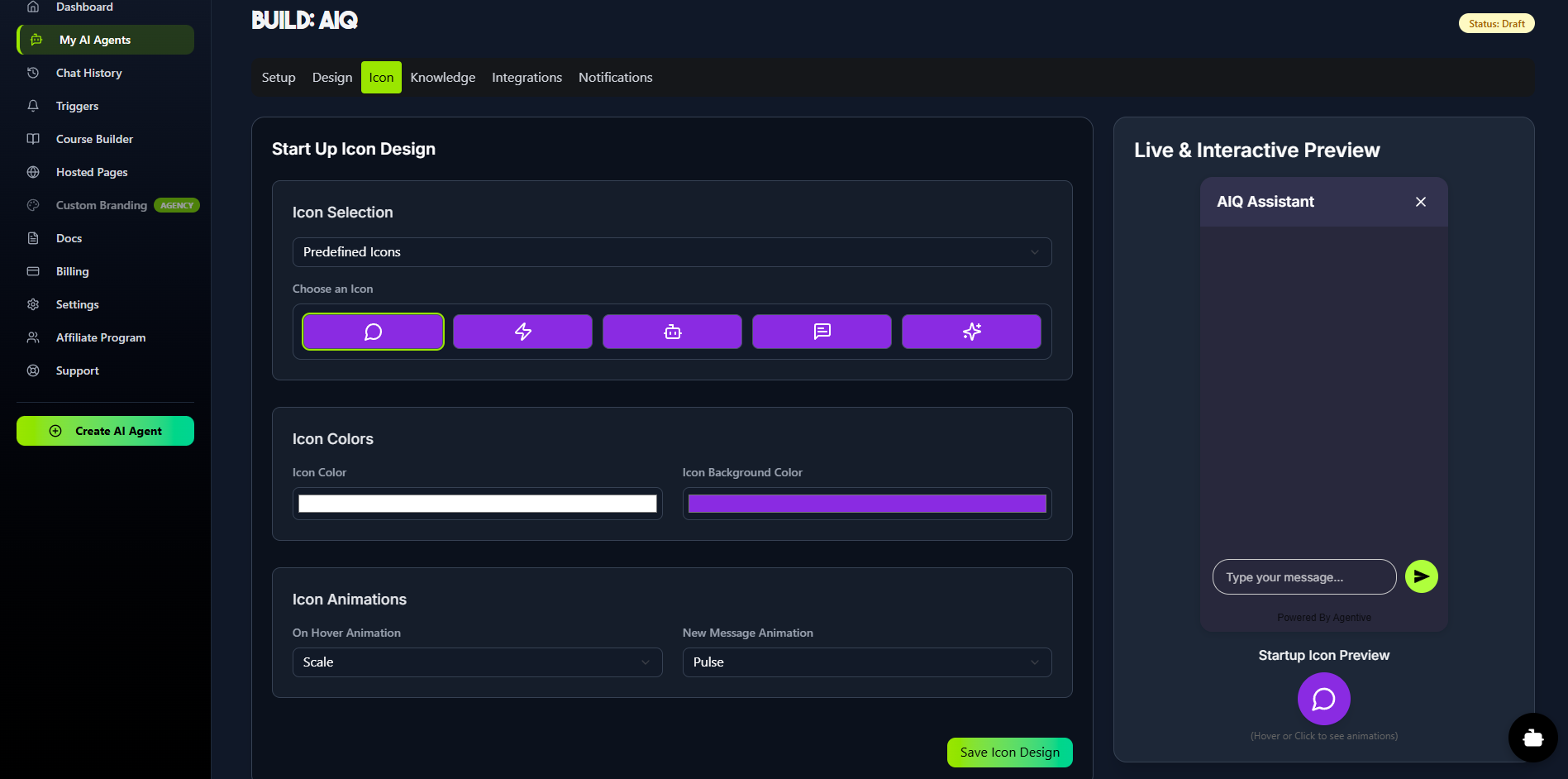
Step 7: Design Your Launcher Icon
If you selected the Floating Widget deployment type, the Icon tab will be available. This section allows you to customize the launcher icon that users will click to open the chat. You can choose from predefined icons, set the icon and background colors, and select animations for hover-over and new message alerts.
Step 8: Build Your Agent's Knowledgebase
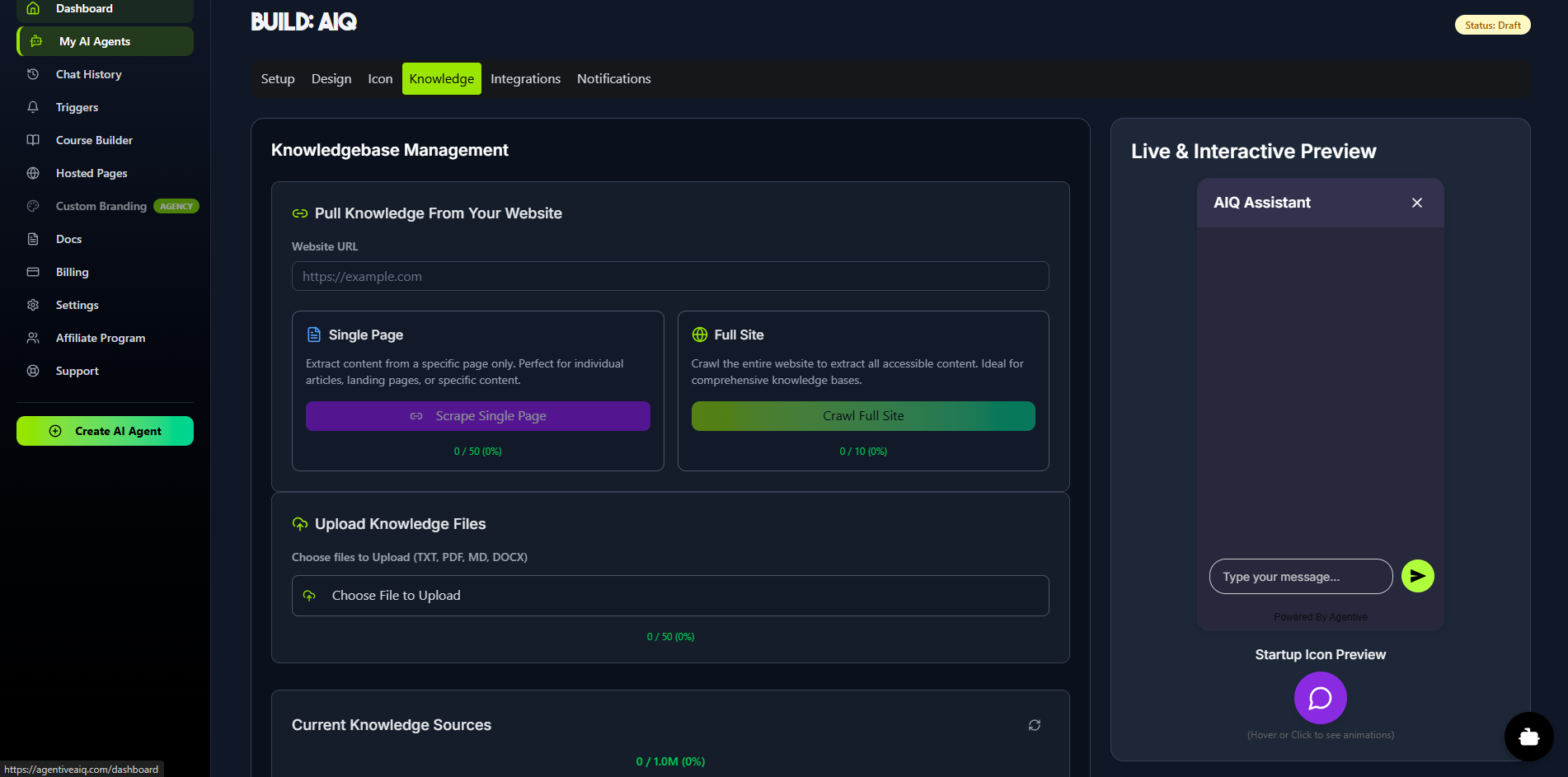
The Knowledge tab is where you build your agent's brain. This is the information your agent will use to provide accurate, in-context answers. You can add knowledge by:
Uploading Files: (TXT, PDF, MD, DOCX)
Scraping a Single Page: (e.g., an FAQ page or blog post)
Crawling a Full Site: To extract all accessible content.
All uploaded data is processed into our RAG DB and Knowledge Graph to ensure high-quality responses. You can add, remove, and update these knowledge sources at any time.
Step 9: Configure Notifications
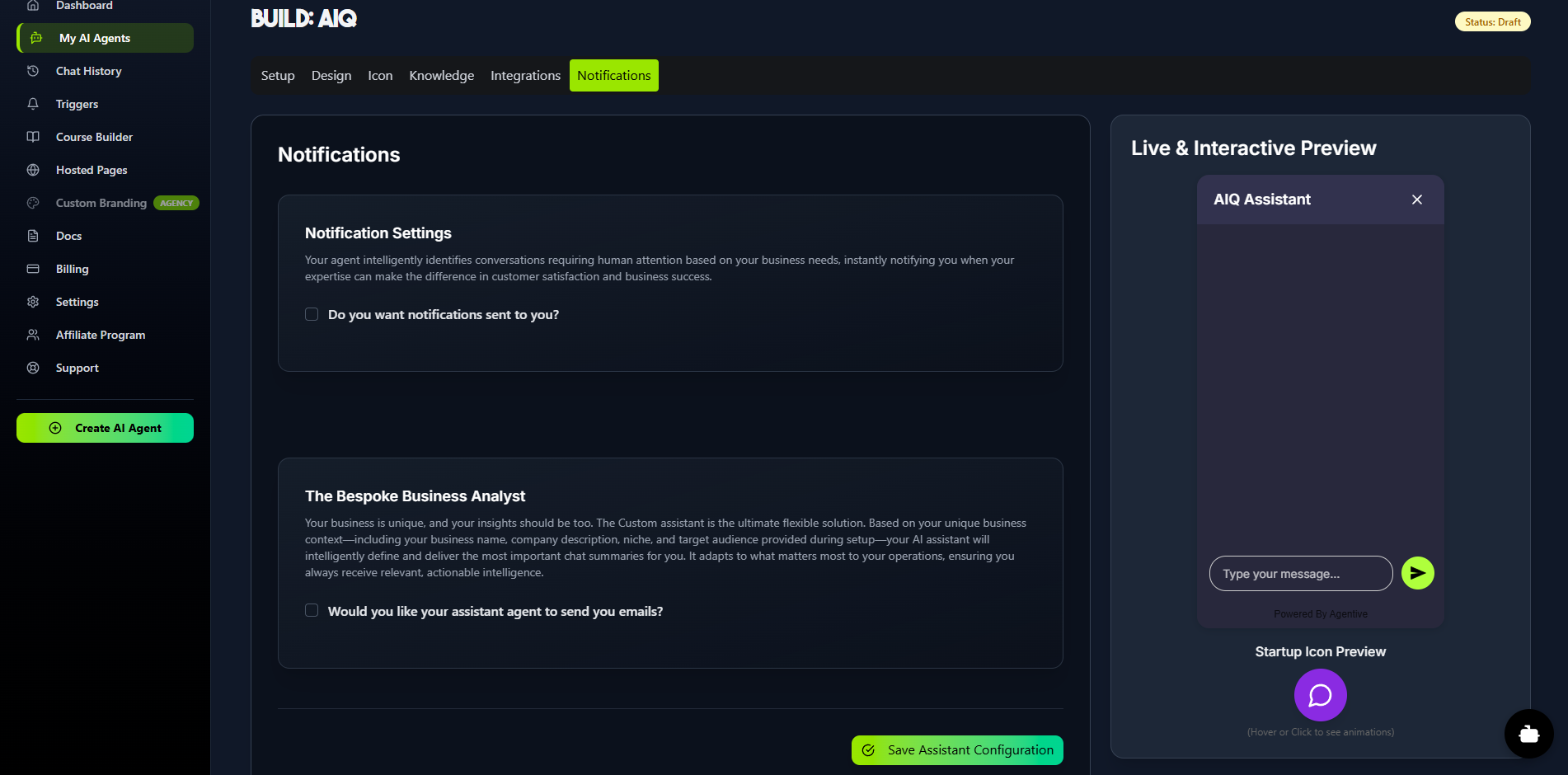
The Notifications tab controls how your two-agent system communicates with you.
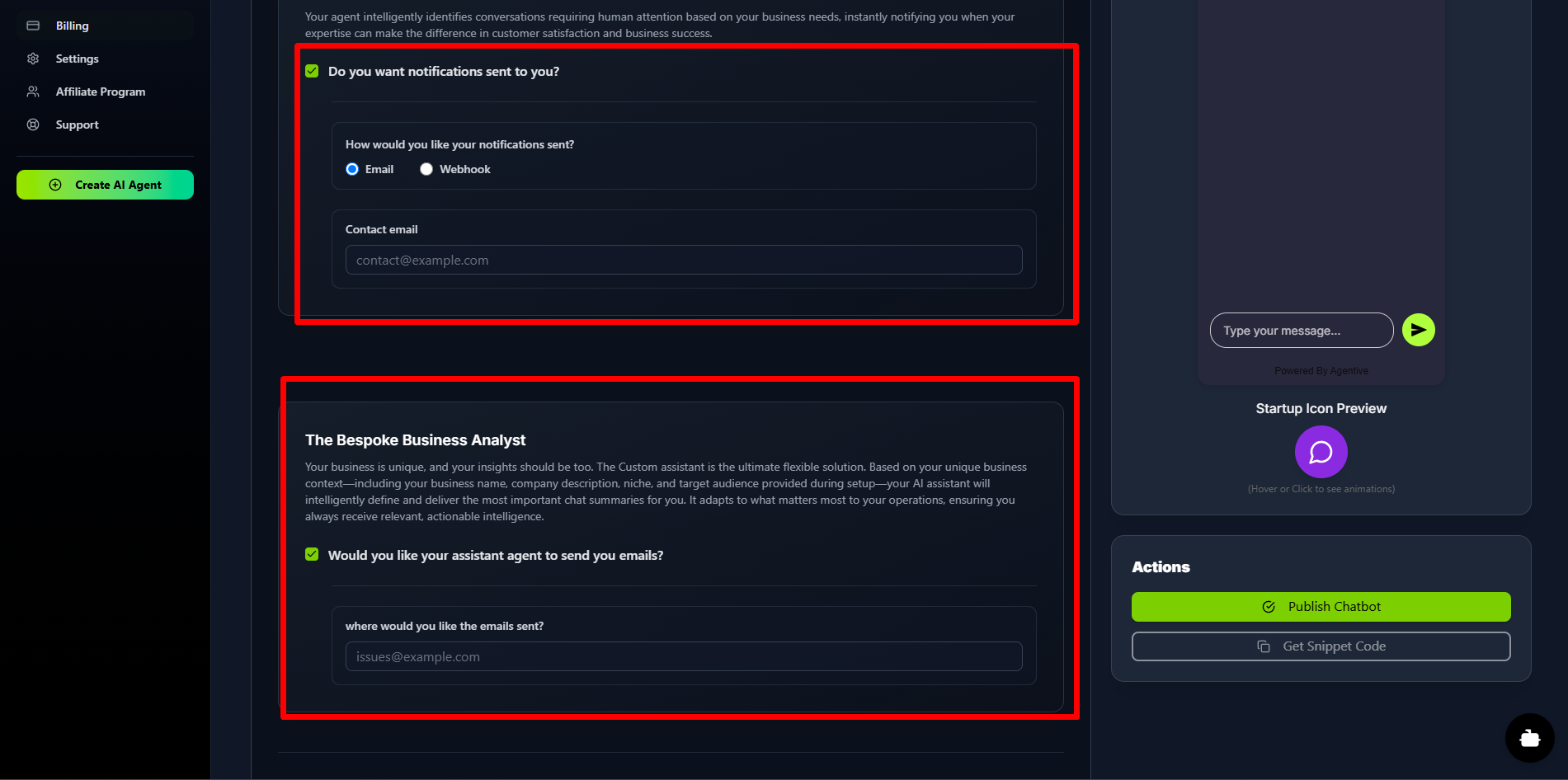
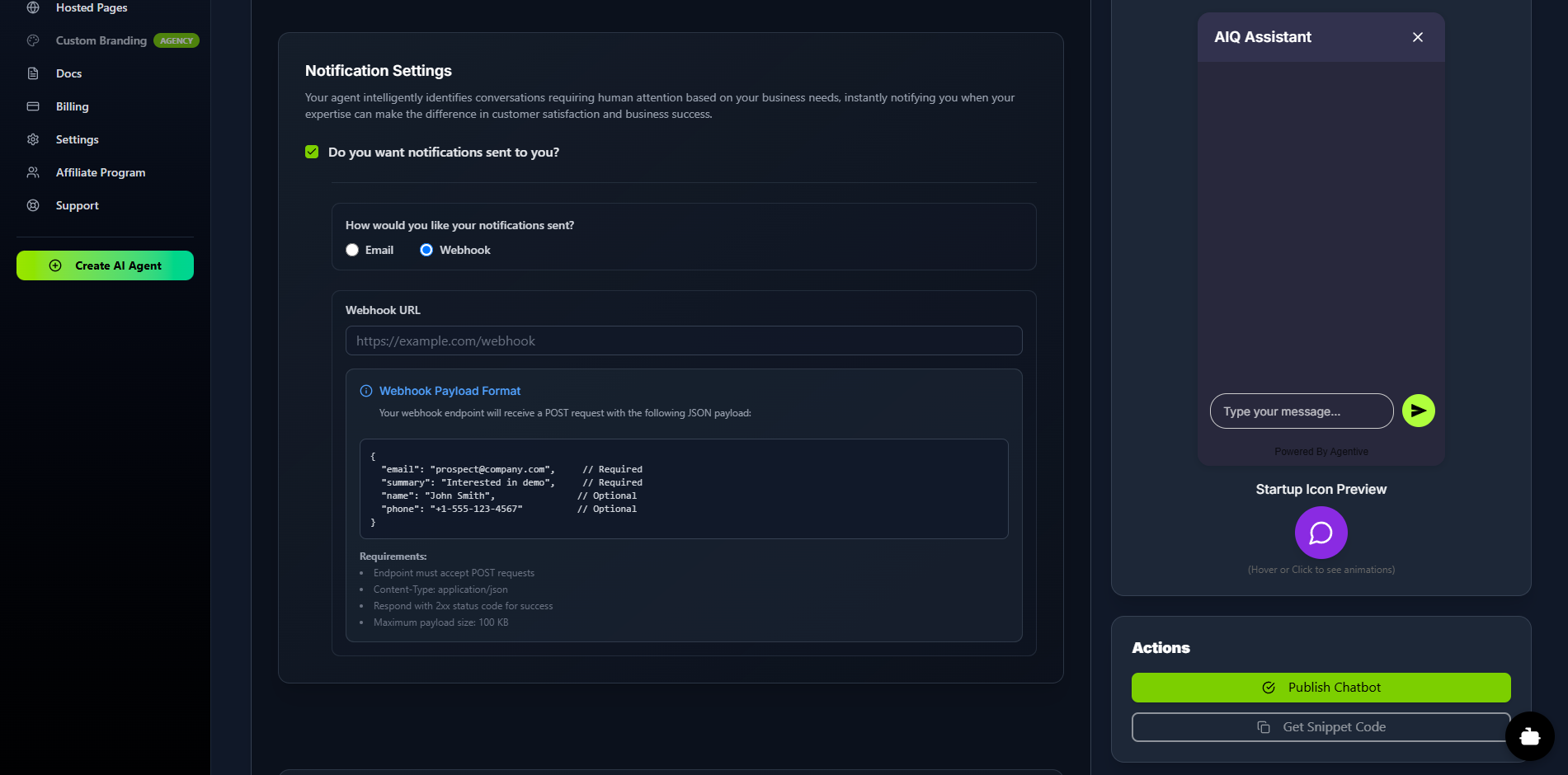
Notification Settings (Main Agent): This top section is for real-time alerts from your user-facing agent. When enabled, the agent will instantly notify you when it achieves its goal (e.g., capturing a new lead). You can choose to receive these alerts via:
Email: Sent to your specified contact address.
Webhook: Sent to your endpoint URL in a structured JSON format, perfect for integrating with a CRM or other automation tools.
The Bespoke Business Analyst (Assistant Agent): This section is for the powerful background AI. When you enable this, your Assistant Agent will analyze completed conversations, identify key insights, and send detailed summary emails to the address you provide.
Step 10: Publish Your Agent & Get the Code
Once you have finished configuring your agent's setup, design, knowledge, and notifications, it's time to go live.
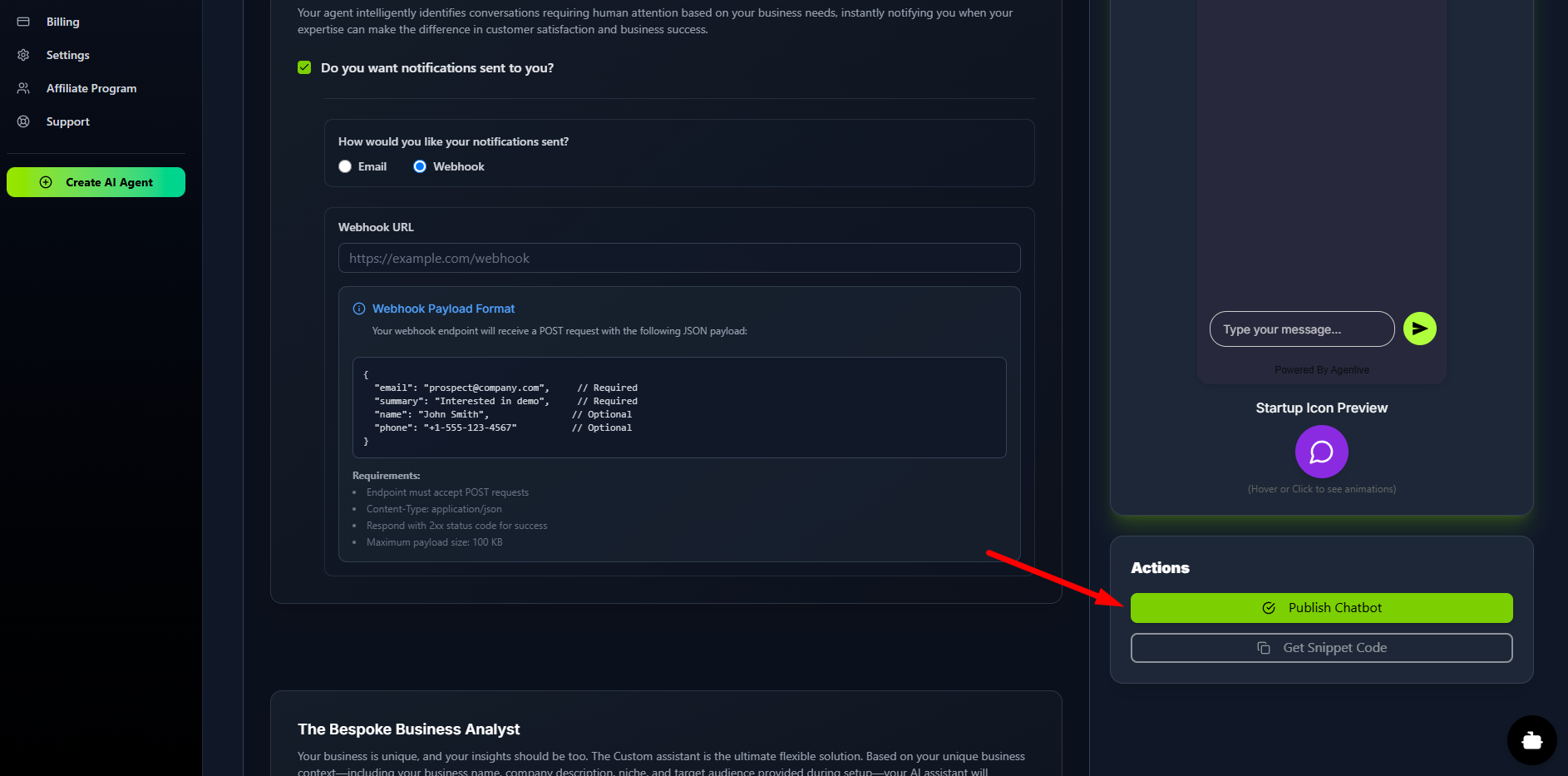
Click the Publish Chatbot button in the "Actions" panel.
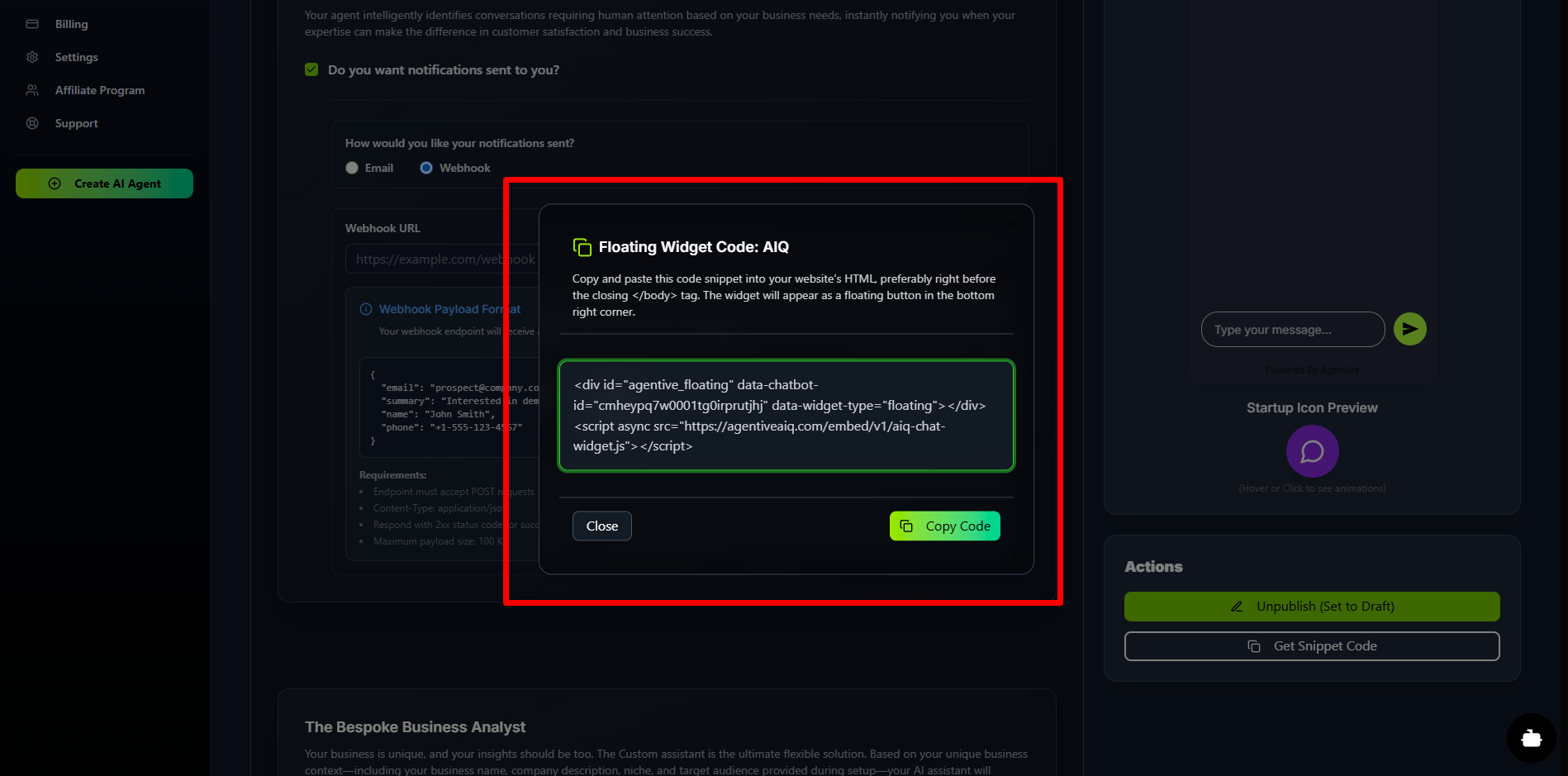
After publishing, the Get Snippet Code button will become active.
Click it to open a modal, copy the single line of code, and paste it into your website's HTML.
If you selected a Floating Widget, it will automatically appear based on your design settings. If you chose an Embedded Window, paste the code in the specific location on your page where you want the chat interface to appear.
Was this article helpful?
Related Articles
How to Use Triggers to Engage Visitors
Triggers are proactive messages designed to engage your website visitors. They appear above your floating launcher icon on specific pages and after a set time delay. You can stack multiple triggers on a single page, and when a visitor clicks one, it will open the chat widget. Note: Triggers are available for Floating Widgets only.
How to Create and Manage Hosted Pages
Hosted Pages are secure, brandable, standalone web pages that you can share with your users. They are perfect for internal company knowledge bases, secure client portals, or as an AI-powered educational tutor system. These pages are "gated," meaning users must be invited and log in to access them. This secure environment enables long-term memory for each user, allowing the AI agent to remember and reference all previous conversations. Prerequisite: Before you can create a Hosted Page, you must first build an AI agent and select Embedded Window as its Deployment Type.
How to Use the AI Course Builder
The Course Builder allows you to create comprehensive, multi-media courses. The true power of this feature is unlocked when you connect your course to a Hosted Page. When you do, the AI agent on that page is automatically trained on all your course content—including text, videos, and audio—to act as a 24/7, personalized AI tutor for each of your students.
How to Integrate with WooCommerce
Give your agent real-time access to your WooCommerce store data. Once connected, your AI assistant can check order status, browse products, check shipping options, and more. Prerequisite: You must have the WooCommerce plugin installed and active on your WordPress site.
How to Integrate with Shopify
Connecting your AI agent directly to your Shopify store unlocks powerful capabilities, allowing it to act as a smart shopping assistant with real-time access to your products, orders, and store information.
READY TO BUILD YOUR AI AGENT?
Start implementing what you've learned with our powerful AI agent platform.