How to Create and Manage Hosted Pages
Hosted Pages are secure, brandable, standalone web pages that you can share with your users. They are perfect for internal company knowledge bases, secure client portals, or as an AI-powered educational tutor system. These pages are "gated," meaning users must be invited and log in to access them. This secure environment enables long-term memory for each user, allowing the AI agent to remember and reference all previous conversations. Prerequisite: Before you can create a Hosted Page, you must first build an AI agent and select Embedded Window as its Deployment Type.
1. Create Your Hosted Page
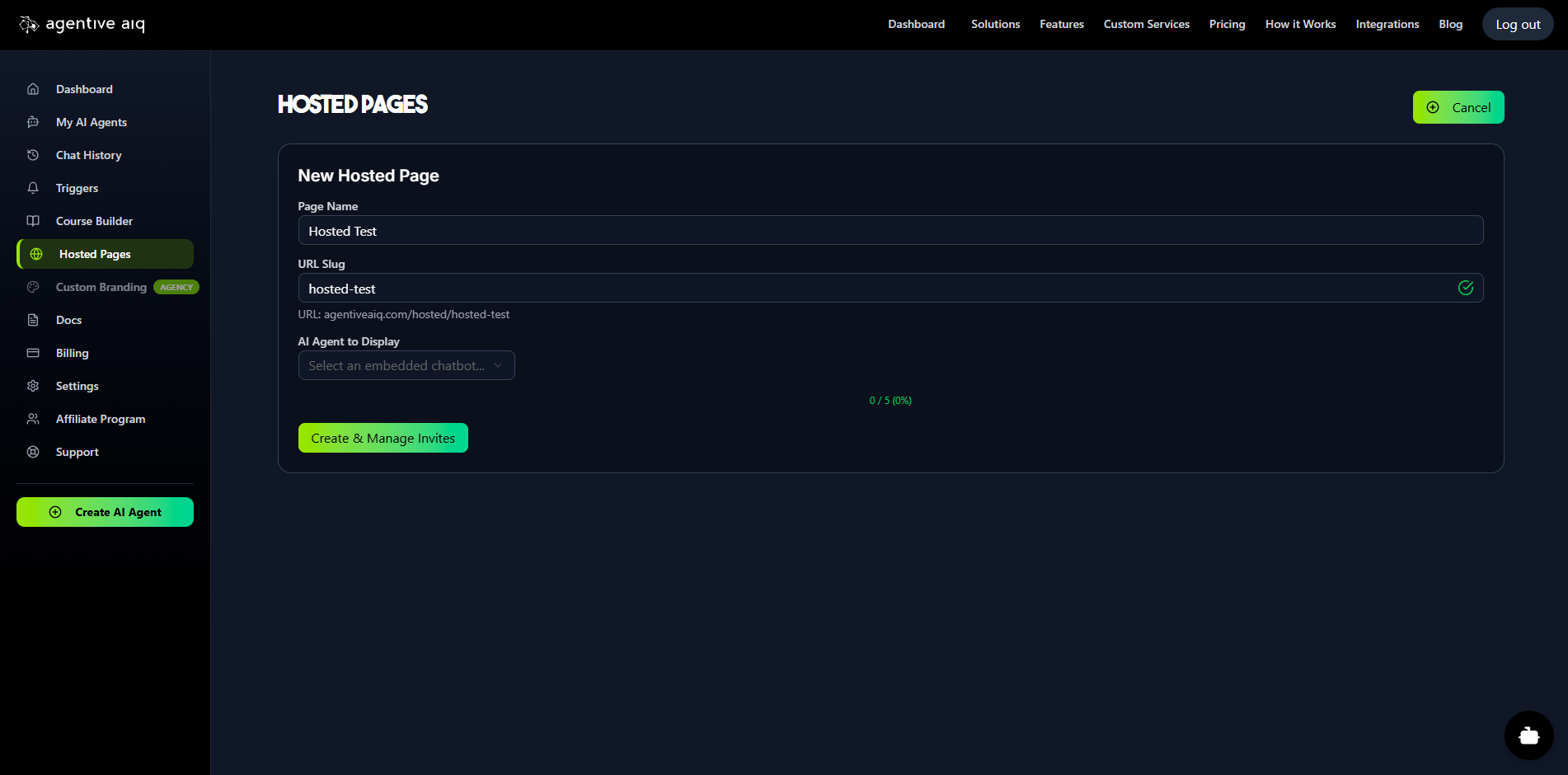
Navigate to Hosted Pages from the main menu and click to create a new page.
Page Name: Give your page a clear title (e.g., "Internal HR Portal").
AI Agent to Display: Select the "Embedded Window" agent you created as a prerequisite. This is the agent that will be featured on the page.
2. Configure General Settings
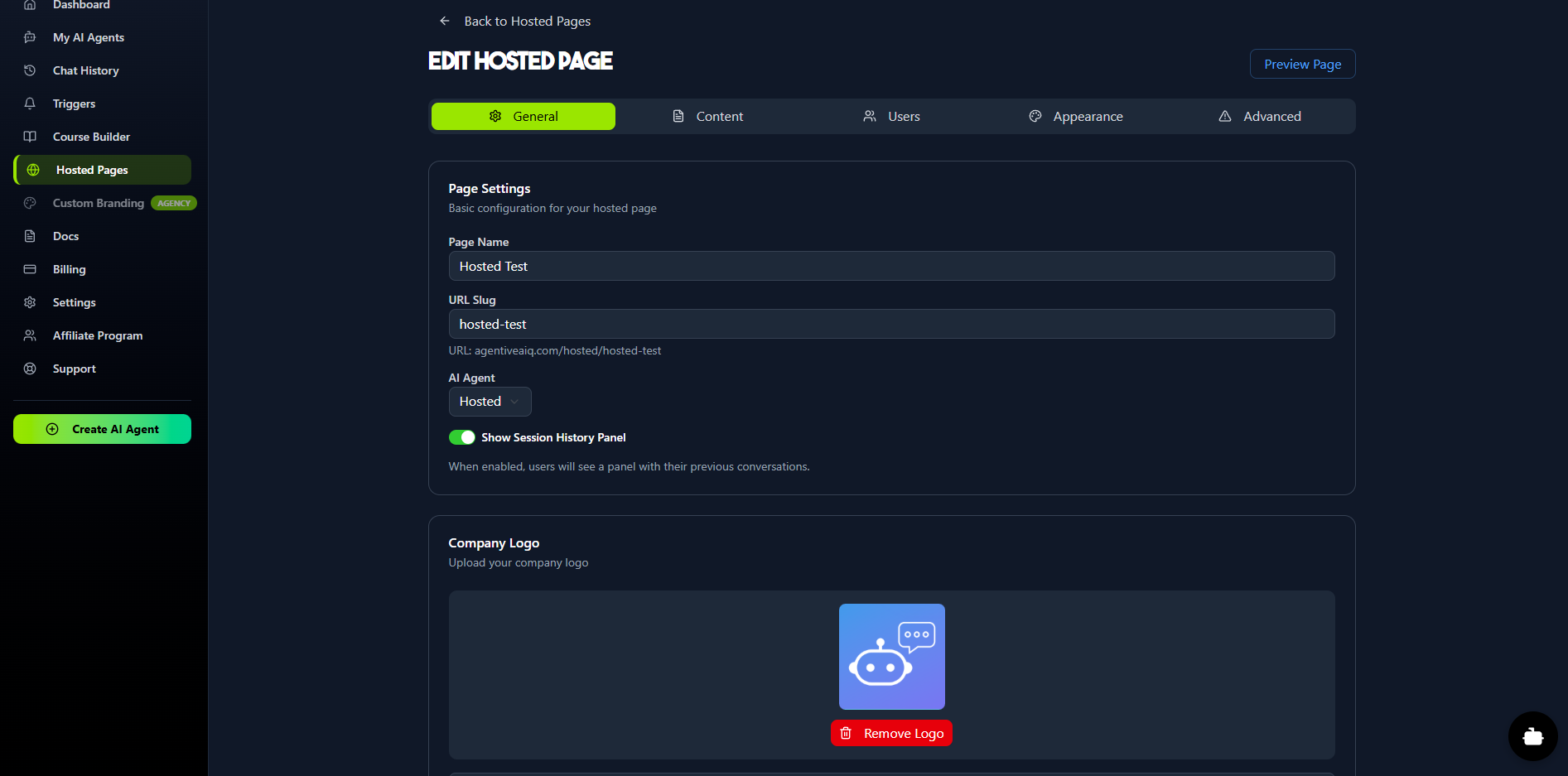
In the General tab, you can upload your Company Logo to brand the login page and chat experience.
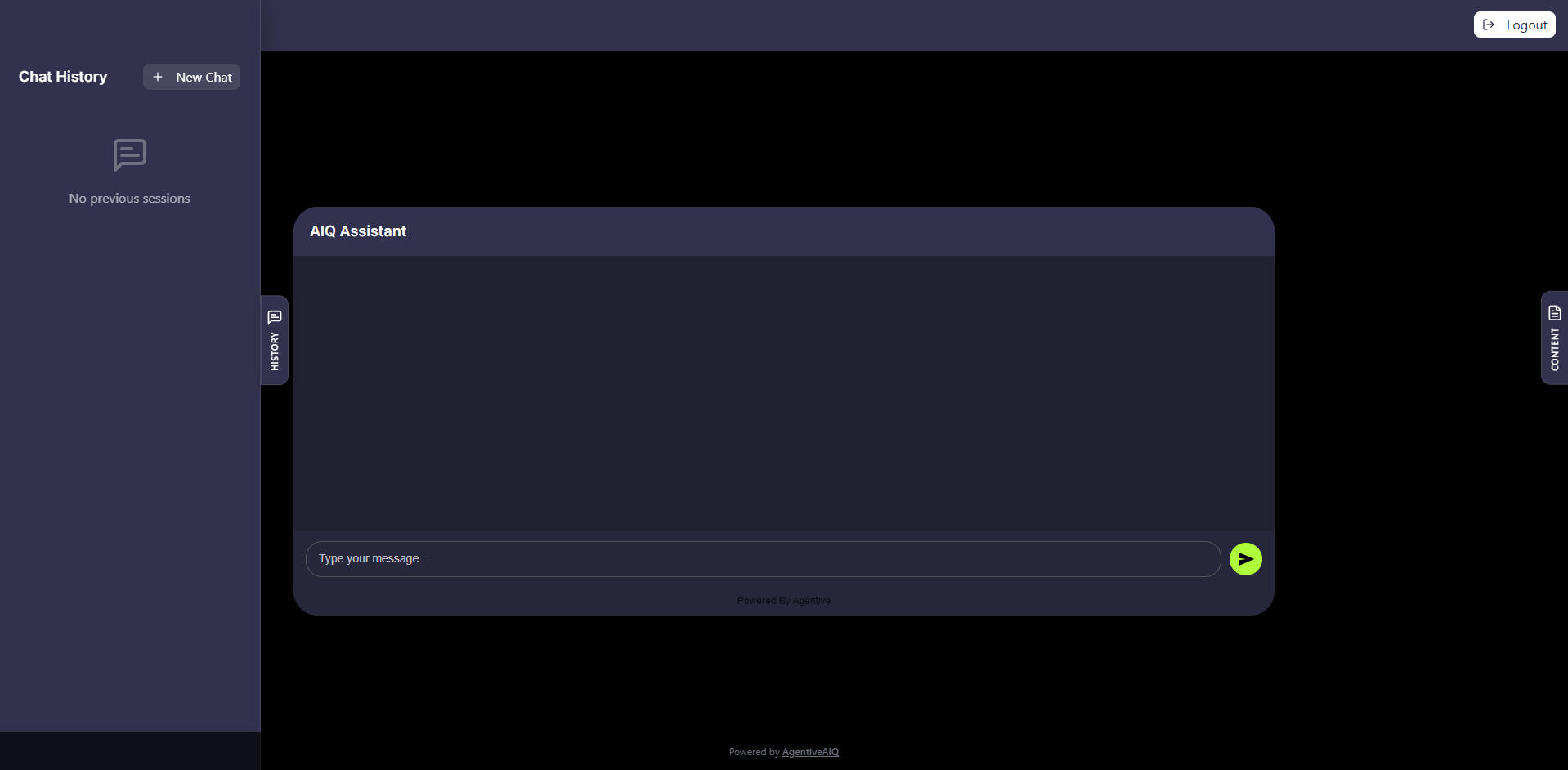
The most important setting here is Show Session History Panel. When this is toggled on, your logged-in users will see a "History" panel. This allows them to view all their previous chat sessions and pick up right where they left off, as the agent maintains a complete long-term memory for their account.
3. Add Your Content
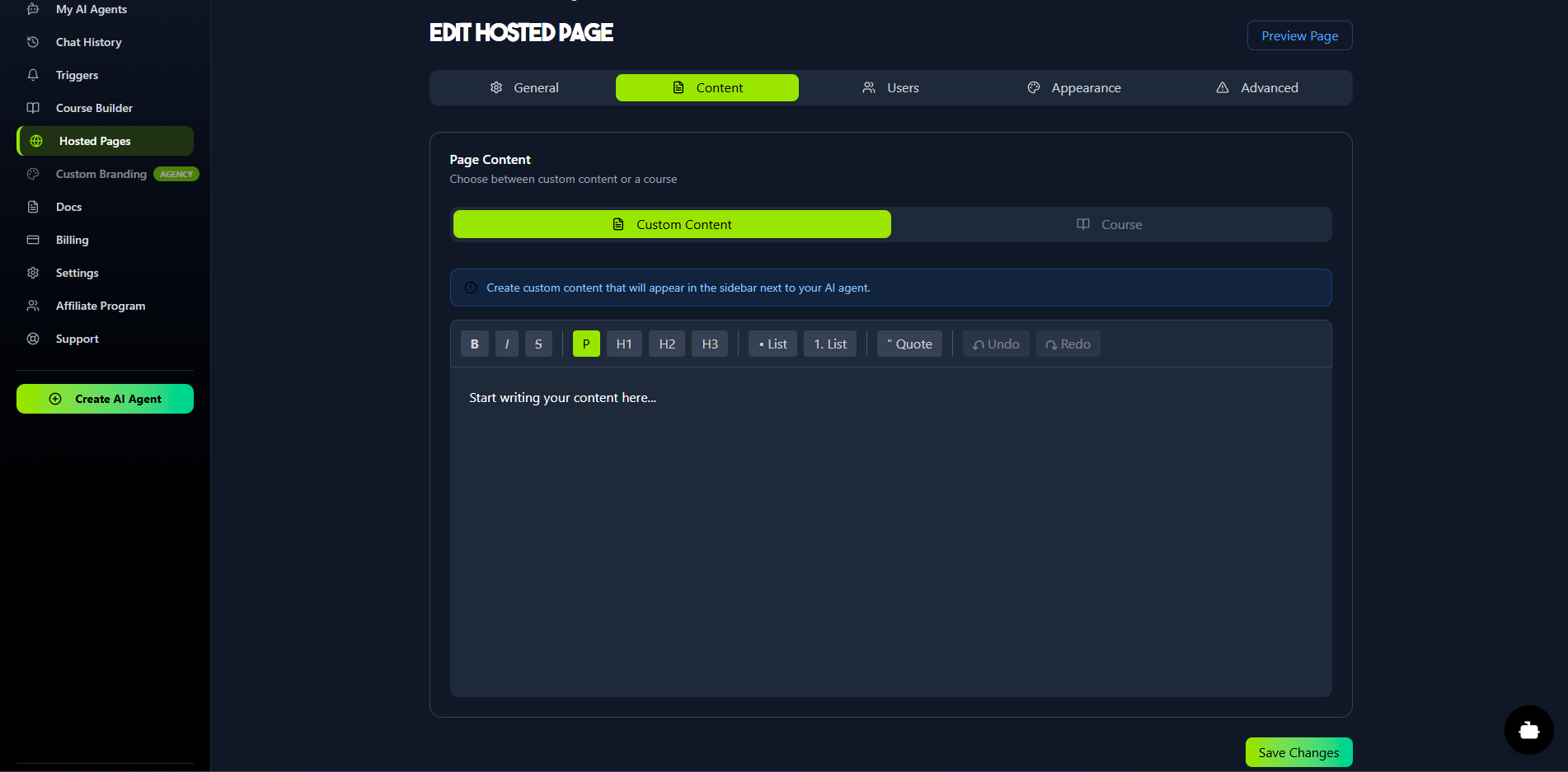
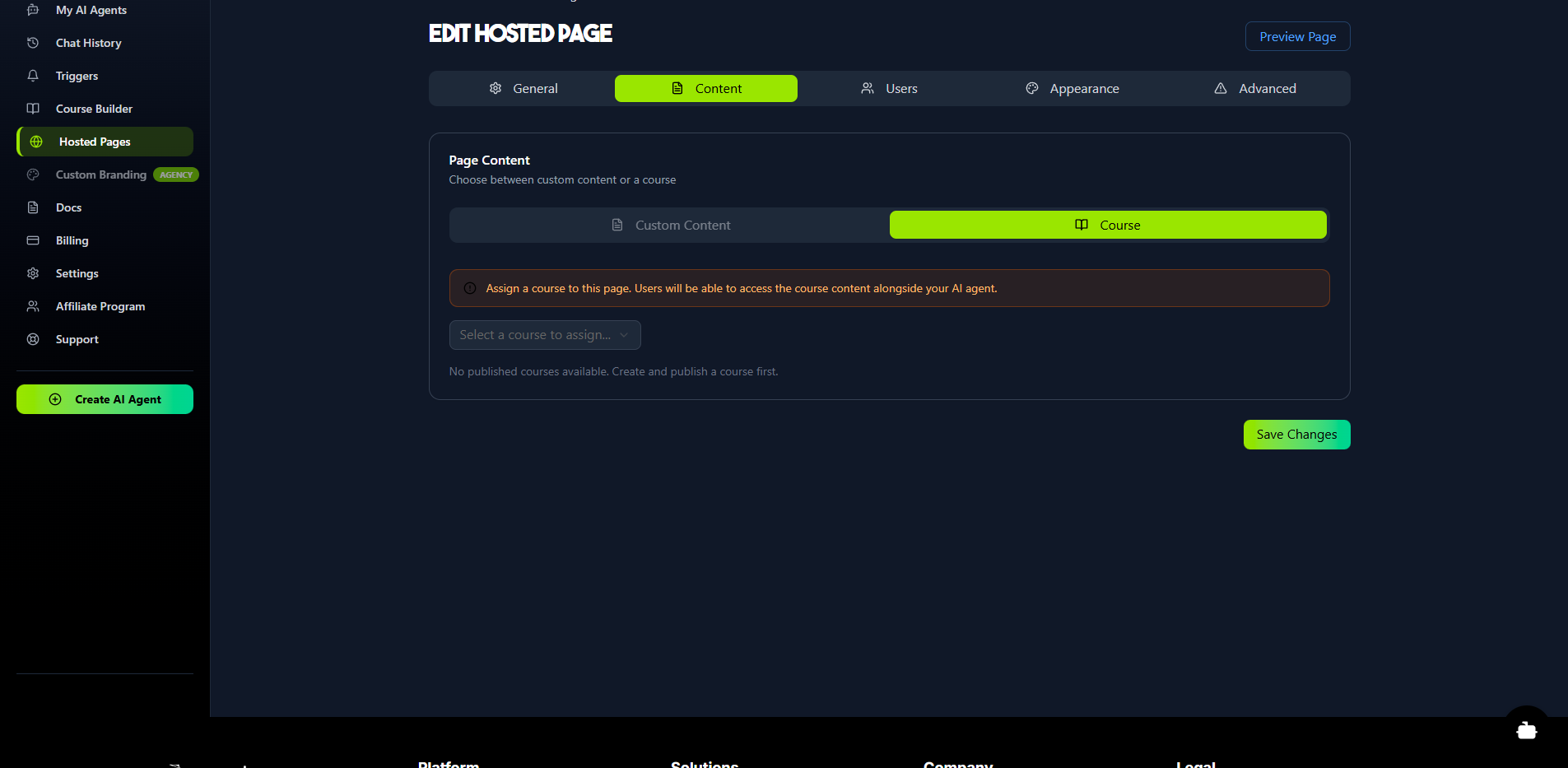
The Content tab lets you decide what information appears in the slide-out "Content" panel alongside your AI agent. You have two choices:
Custom Content: Use the rich-text editor to add any information you want—instructions, key documents, video links, or welcome messages.
Course: Assign a complete course that you've built in the Course Builder. The user can access all the course content, and the AI agent will be automatically trained on it to act as a 24/7 personal tutor.
4. Invite and Manage Users
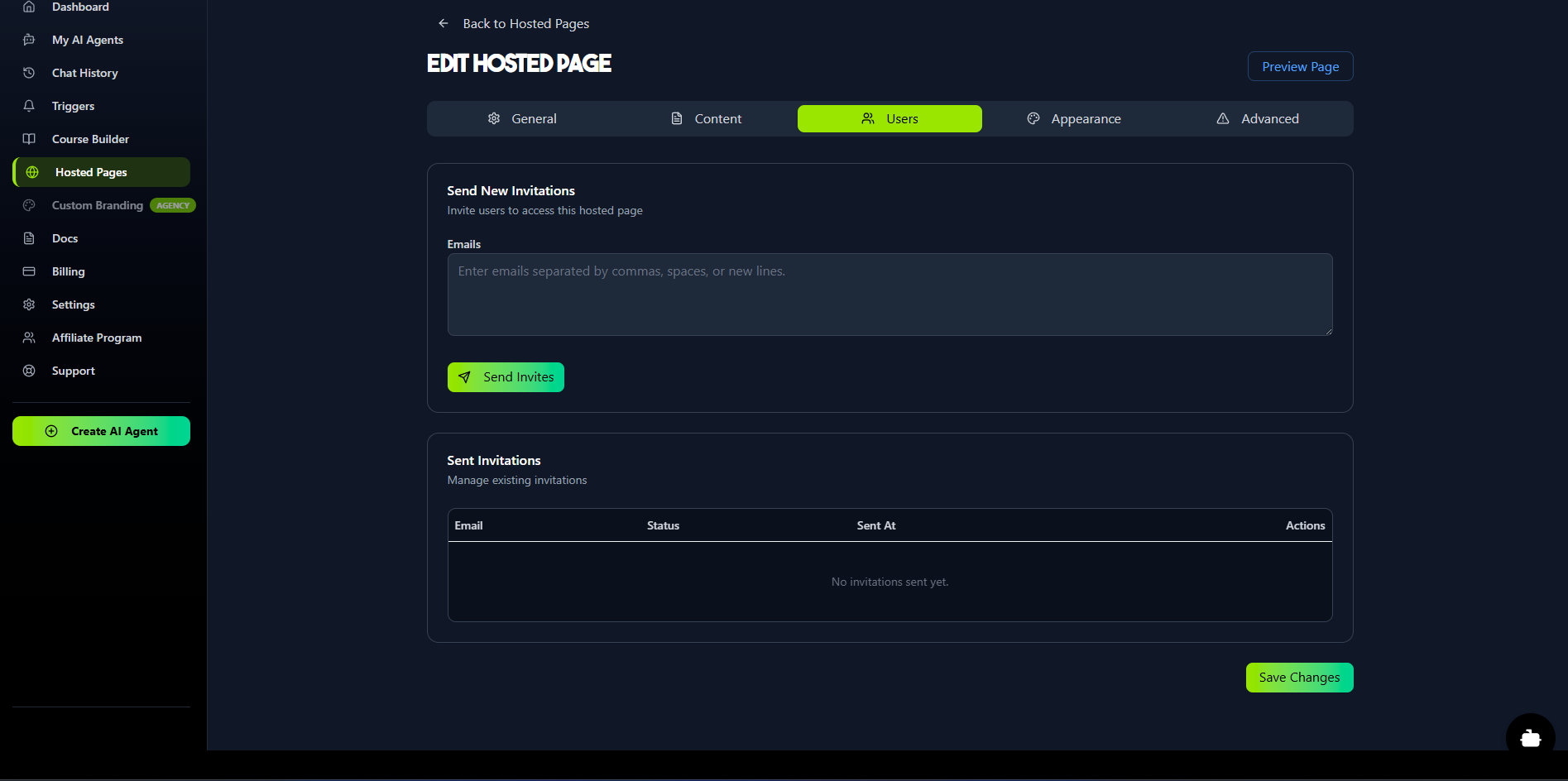
The Users tab is where you control access to your gated page.
Send New Invitations: Enter the email addresses of the users you want to invite. This sends them a welcome email prompting them to create a free account, which will grant them access to this specific page.
Sent Invitations: Manage all pending and accepted invitations.
5. Customize the Appearance
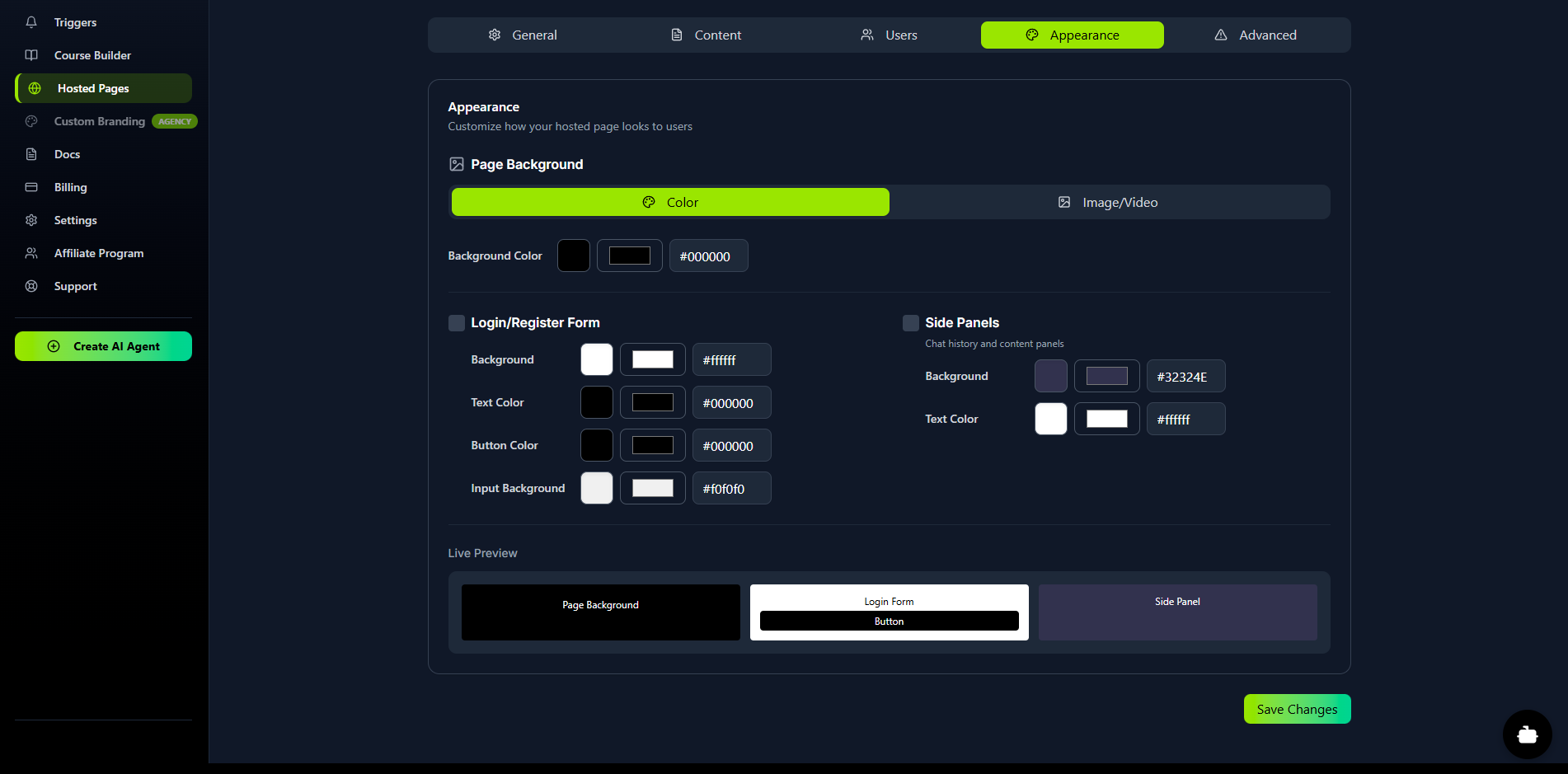
The Appearance tab gives you full WYSIWYG control to brand the entire user experience:
Page Background: Set a background color, image, or even a video for the main chat area.
Login/Register Form: Customize the colors of the login page (background, text, buttons) to match your brand.
Side Panels: Change the background and text colors for the slide-out "History" and "Content" panels.
6. Preview and Go Live
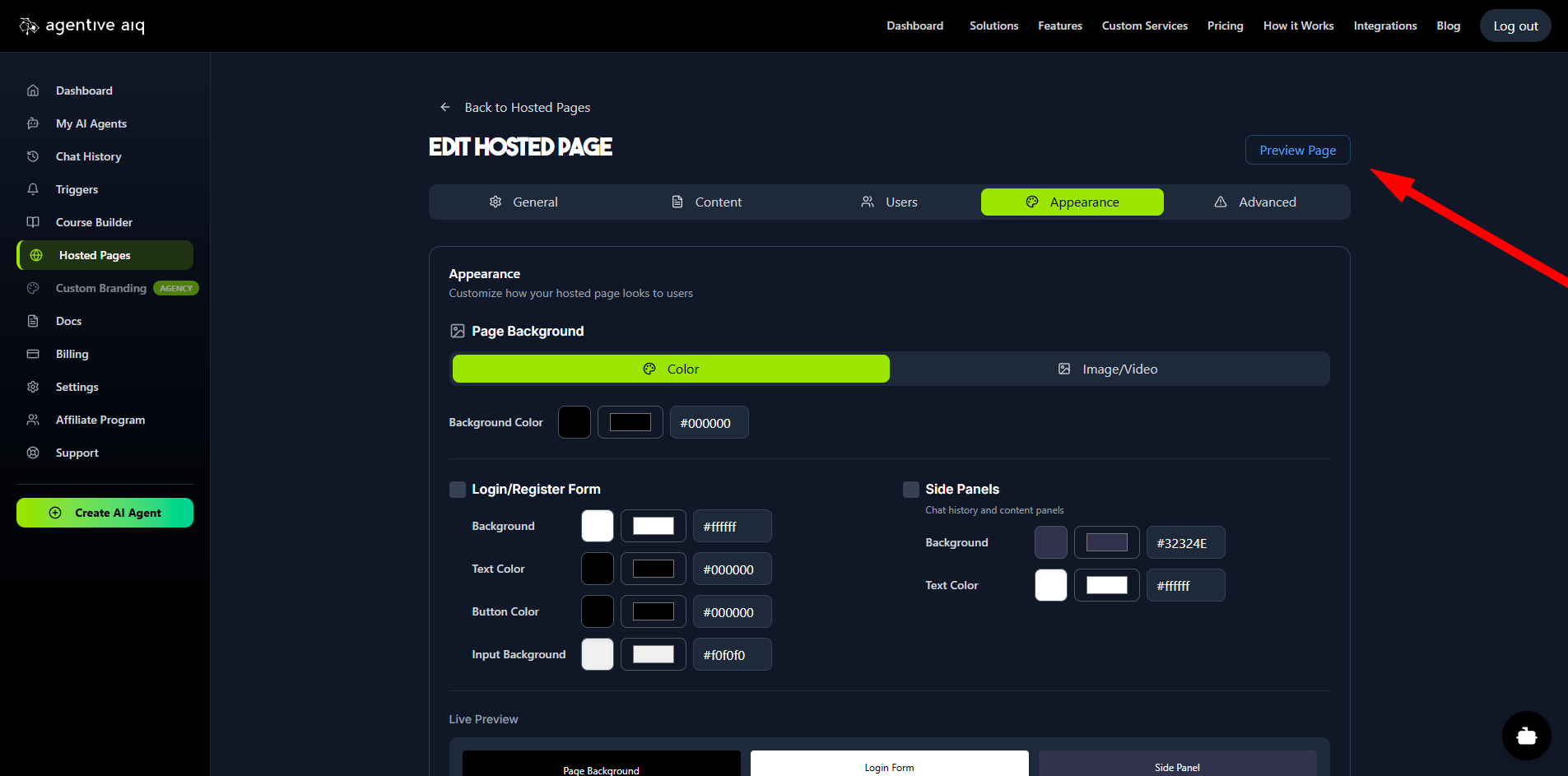
At any time during the setup, click the Preview Page button in the top-right corner. This will open a new tab showing you exactly what your users will see, starting with your custom-branded login page.
The End-User Experience
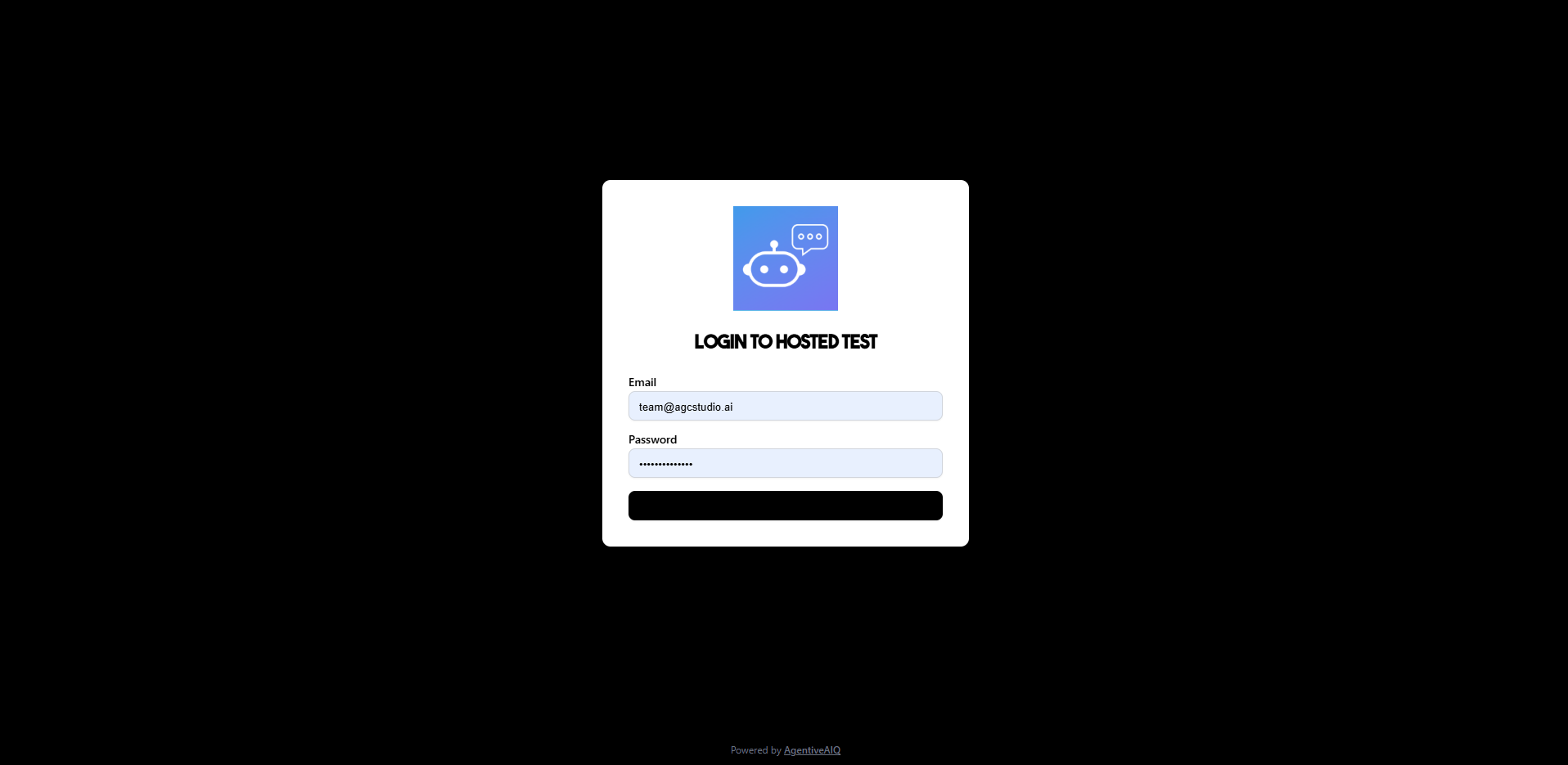
Your invited user first sees a custom-branded login page.
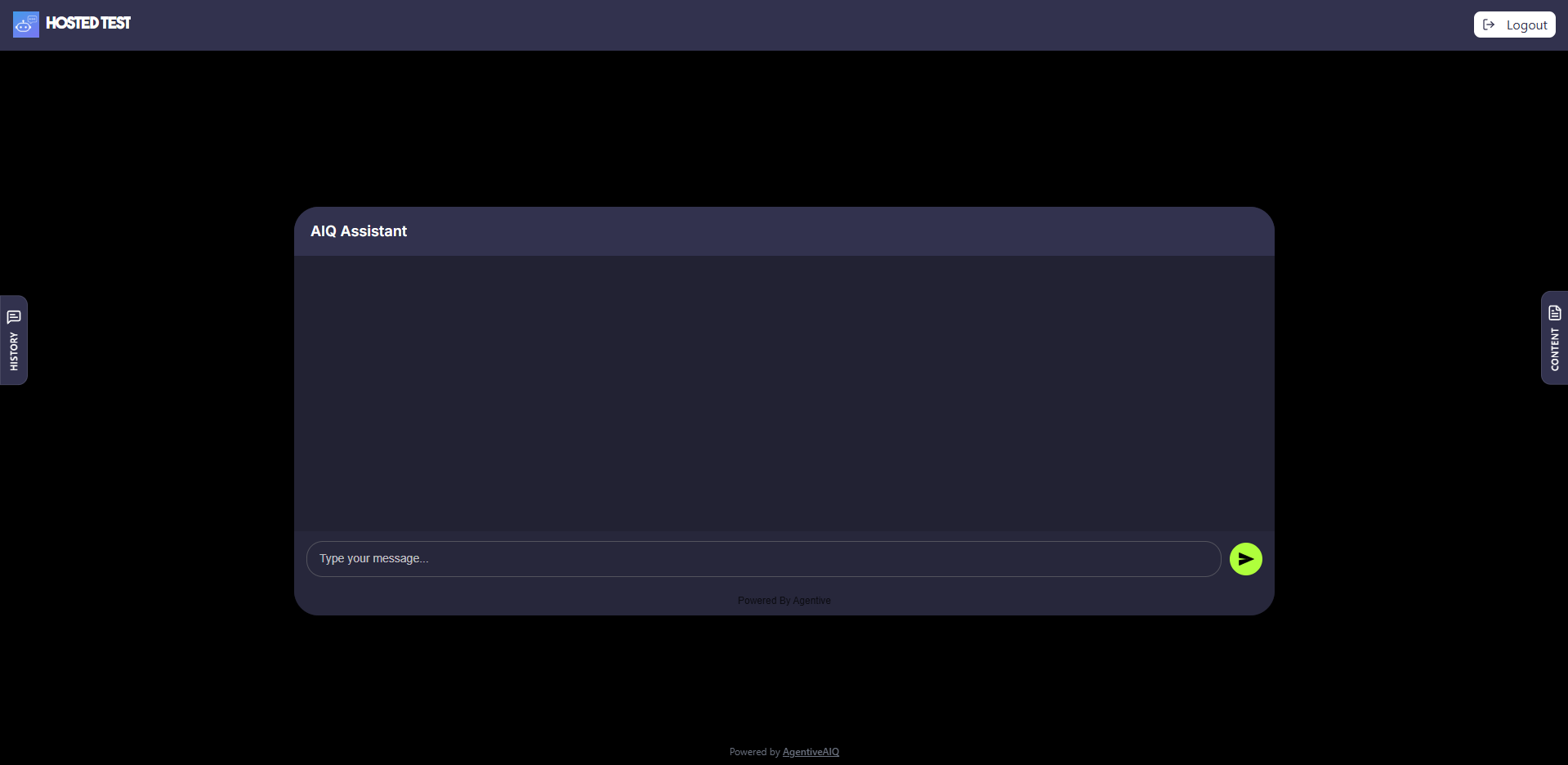
After logging in, they land on the main chat page, with the AI agent in the center.
They can click the slide-out Content panel to view the course or custom information you added.
If you enabled it, they can also click the History panel to see all previous conversations and resume any past discussion.
Was this article helpful?
Related Articles
How to Use Triggers to Engage Visitors
Triggers are proactive messages designed to engage your website visitors. They appear above your floating launcher icon on specific pages and after a set time delay. You can stack multiple triggers on a single page, and when a visitor clicks one, it will open the chat widget. Note: Triggers are available for Floating Widgets only.
How to Use the AI Course Builder
The Course Builder allows you to create comprehensive, multi-media courses. The true power of this feature is unlocked when you connect your course to a Hosted Page. When you do, the AI agent on that page is automatically trained on all your course content—including text, videos, and audio—to act as a 24/7, personalized AI tutor for each of your students.
Getting Started
Welcome to AgentiveAIQ! This guide will walk you through the entire no-code journey of building and launching your first specialized AI agent. We'll start at your main dashboard, move through selecting a powerful pre-trained goal for your agent, and dive into complete visual customization with our live WYSIWYG editor. You'll also learn how to build your agent's "brain" by adding your website or documents, and finally, how to publish your new agent to your site with a single line of code.
How to Integrate with WooCommerce
Give your agent real-time access to your WooCommerce store data. Once connected, your AI assistant can check order status, browse products, check shipping options, and more. Prerequisite: You must have the WooCommerce plugin installed and active on your WordPress site.
How to Integrate with Shopify
Connecting your AI agent directly to your Shopify store unlocks powerful capabilities, allowing it to act as a smart shopping assistant with real-time access to your products, orders, and store information.
READY TO BUILD YOUR AI AGENT?
Start implementing what you've learned with our powerful AI agent platform.